

Beschrijving

GSheetConnector For WPForms – WPForms Google Sheets Integration (Real-Time Sync)
Beschrijving
Automatically send WPForms entries to Google Sheets in real-time.
GSheetConnector for WPForms is a powerful and user-friendly add-on that connects your WordPress website running WPForms with Google Sheets and automatically saves every form submission into a connected spreadsheet.
When a visitor submits a form on your website, the data is instantly synced to Google Sheets — no manual export, no copy-paste, and no coding required. This makes it easy to manage, share, and analyze WPForms entries directly inside Google Sheets.
This plugin works with both WPForms Lite and WPForms Pro and allows you to build a complete WPForms to Google Sheets automation system without writing any code.
🚀 Key Features
🔄 Real-time sync of WPForms entries to Google Sheets
📄 Works with WPForms Lite and WPForms Pro (tested with the latest versions)
🧩 Feed-based form-to-sheet connections
📊 Supports multiple forms and multiple Google Sheets per form
🔑 Secure Google authentication (one-click OAuth)
🏷 Supports WPForms Smart Tags
📅 Sync submission date and time
🛠 Debug log and system status for troubleshooting
💡 Why Use GSheetConnector for WPForms?
Most businesses waste time exporting WPForms entries, downloading CSV files, and manually copying data into spreadsheets. GSheetConnector eliminates this by creating a real-time connection between WPForms and Google Sheets.
Every form submission is automatically synced, allowing you to:
• Follow up on leads instantly
• Share data with your team
• Build reports and dashboards
• Avoid data loss and human errors
• Manage everything inside Google Sheets
• Enable real-time collaboration
Documentation | Support | Demo | WPForms Google Sheet Connector Pro | Our Plugins
🤝 Powerful PRO Automation Features
Upgrade to WPForms Google Sheet Connector Pro to unlock full automation and advanced control:
➜ Custom Google API integration (OAuth & Service Account)
➜ Create new Google Sheets directly from WordPress
➜ Field-to-column mapping
➜ Re-order or rename Google Sheet headers
➜ Use any WPForms Smart Tags as column headers
➜ Sync existing WPForms entries to Google Sheets
➜ Freeze header row
➜ Row colors (odd/even + header styling)
➜ Multiple feeds per form
➜ Date-based and filtered syncing
👉 Upgrade to Pro: https://www.gsheetconnector.com/wpforms-google-sheet-connector-pro/
Trusted by 20,000+ active installations across FREE and PRO versions. Try WPForms Google Sheet Connector now and simplify your WPForms to Google Sheets workflow.
⚡️ Check Live Demo
🔗 WPForms Live Demo – Click Here
Google Sheet URL to Check submitted Data
Related Google Sheets Connector Plugins
GSheetConnector also offers Google Sheets integrations for other popular WordPress plugins, helping you automate data syncing across your website without writing code.
• GSheetConnector for Contact Form 7 – Automatically send Contact Form 7 submissions to Google Sheets for easy lead management. (Free & Pro available)
• GSheetConnector for WPForms – Sync WPForms entries to Google Sheets in real-time with flexible feed-based settings. (Free & Pro available)
• GSheetConnector for Gravity Forms – Connect Gravity Forms submissions to Google Sheets and manage form data efficiently. (Free & Pro available)
• GSheetConnector for Ninja Forms – Automatically export Ninja Forms entries to Google Sheets with reliable syncing. (Free & Pro available)
• GSheetConnector for Formidable Forms – Connect Formidable Forms data to Google Sheets for structured data management. (Free & Pro available)
• GSheetConnector for Fluent Forms – Export Fluent Forms entries to Google Sheets automatically upon form submission. (Free & Pro available)
• GSheetConnector for Elementor Forms – Send Elementor form submissions directly to Google Sheets for reporting and collaboration. (Free & Pro available)
• GSheetConnector for WooCommerce – Sync WooCommerce orders, customers, and products with Google Sheets for real-time tracking. (Free & Pro available)
• GSheetConnector for Divi Forms – Integrate Divi form submissions with Google Sheets. (Pro version only)
• GSheetConnector for Avada Forms – Send Avada form entries to Google Sheets for centralized data handling. (Pro version only)
• GSheetConnector for WordPress Core – Import and export WordPress posts and pages using Google Sheets. (Pro version only)
Explore our Google Sheets connector plugins and access free versions where available.
✨ How to Use this Plugin
Step: 1 – In Google Sheets
➜ Log into your Google Account and visit Google Sheets.
➜ Create a new Sheet and name it.
➜ Rename or keep default name of the tab on which you want to capture the data.
➜ Copy Sheet Name, Sheet ID, Tab Name and Tab ID (Refer Screenshots)Step: 2 – In WordPress Admin
➜ Navigate to WPForms > Google Sheet > Integration Tab.
➜ Authenticate with Google using new “Google Access Code” while clicking on “Get Code”
➜ Make Sure to ALLOW Google Permissions for Google Drive and Google Sheets and then copy the code and paste in Google Access Code field, and Hit Save & Authenticate.
➜ Then, Navigate to GoogleSheet Form Settings Tab Selected respective WPForm from the dropdown with which you want to connect with Google Sheet.
➜ Now copy and paste the Google Sheets sheet name and tab name into respective input fields, and submit.Step: 3 – Arranging Columns in Sheet
➜ In the selected Google sheet, enter column names in first row (as a header) as per the Label, Copy and Paste the form field label from the WPForms to Google Sheet (e.g. “Name”, “Email”, “Comment or Message”, “date” etc).
➜ Lastly Test your WPForms and verify that the data shows up in your Google Sheet.
🔥 Videos to help you get started with WPForms Google Sheets Connector
🚀WPForms Forms Google Sheet Connector Introduction Video
🔐 Secure & Compliant
GSheetConnector connects directly to your Google account. Your form data stays inside:
• Your WordPress site
• Your Google Drive
No third-party servers, no external storage.
If you need advanced automation, bulk sync, or multiple feeds, the Pro version gives you full control over how your WPForms data flows into Google Sheets.
Important Notes
➜ Make sure the column headers in your Google Sheet match the field labels used in WPForms. Keeping names consistent ensures that form entries are mapped and synced correctly.
Schermafbeeldingen
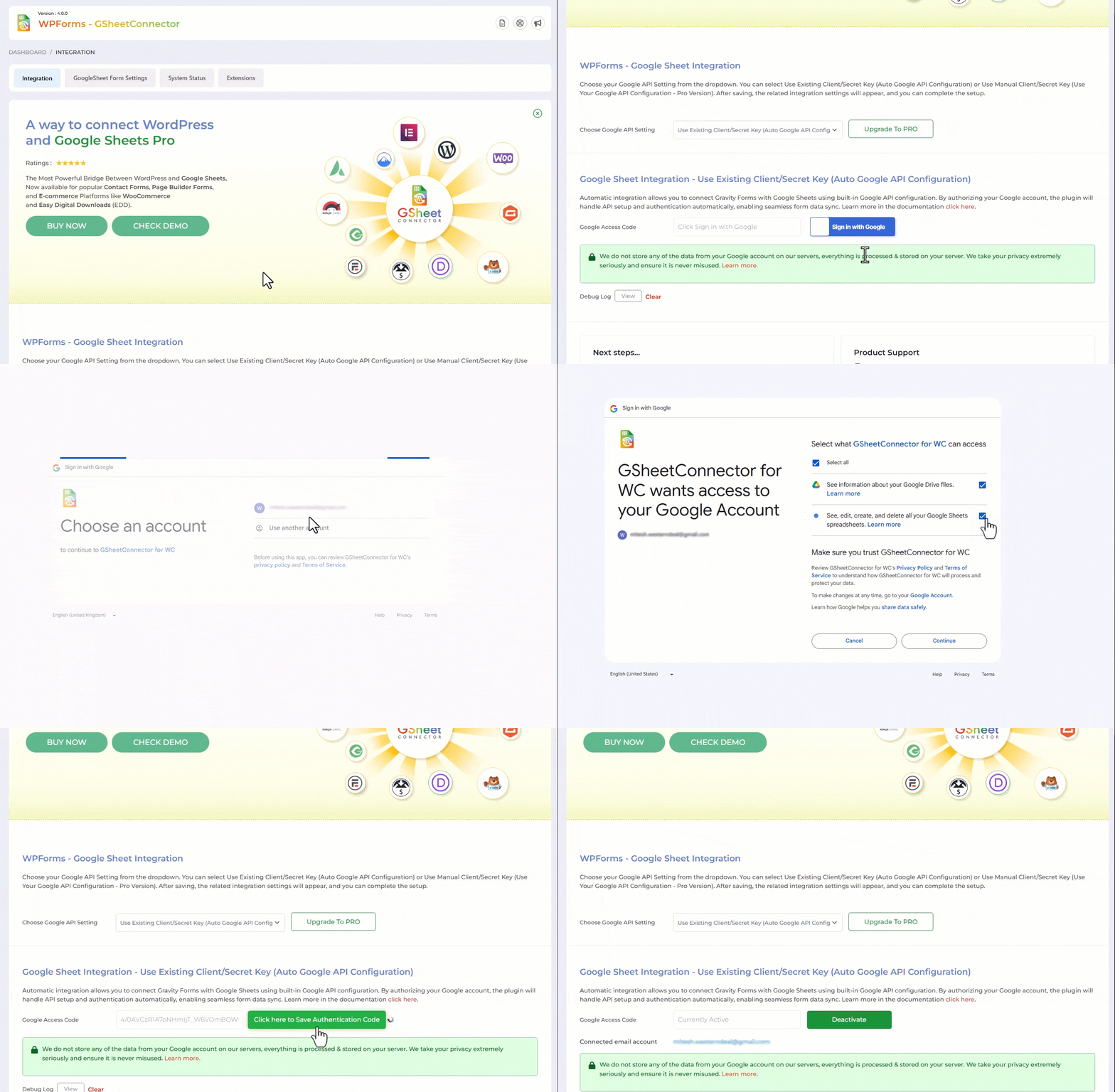
Google Sheet Integration Shown with Authentication along with Permissions. 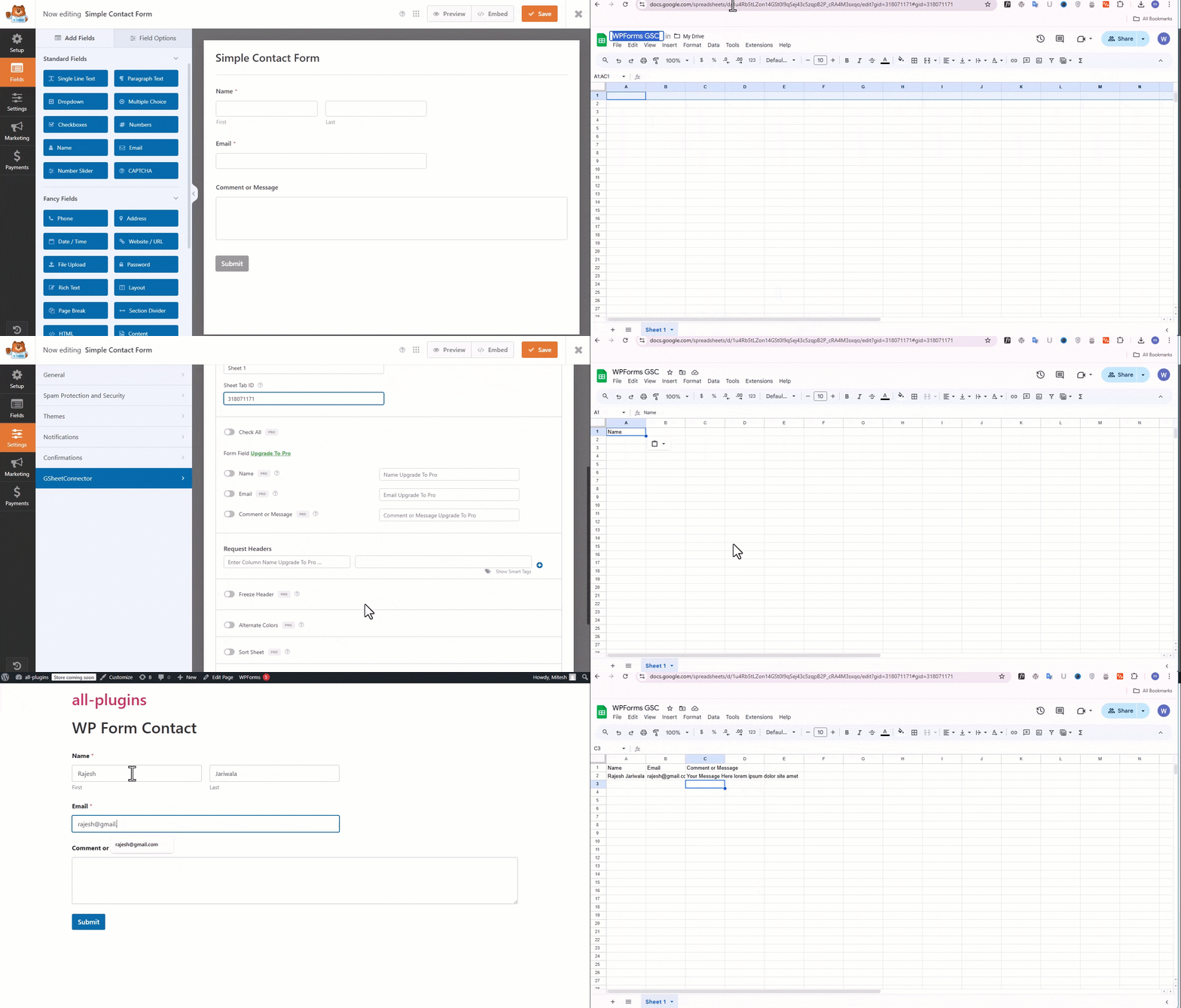
How to Enter Sheet Name and Tab Name is shown and Entering the Field Header Names Manually in the Connected Sheet and Submitting the form. 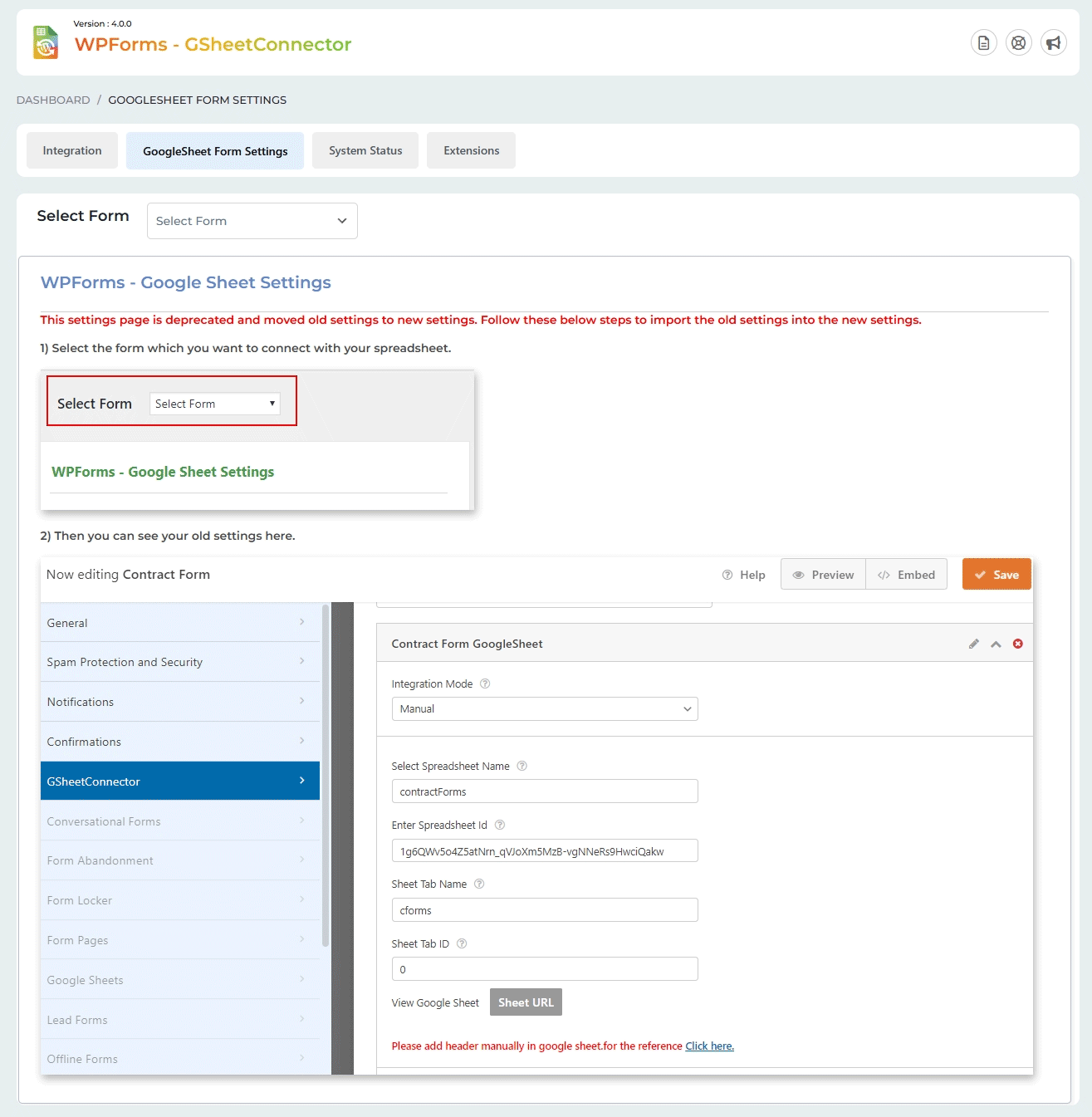
GoogleSheet Form Settings. 
System Status. 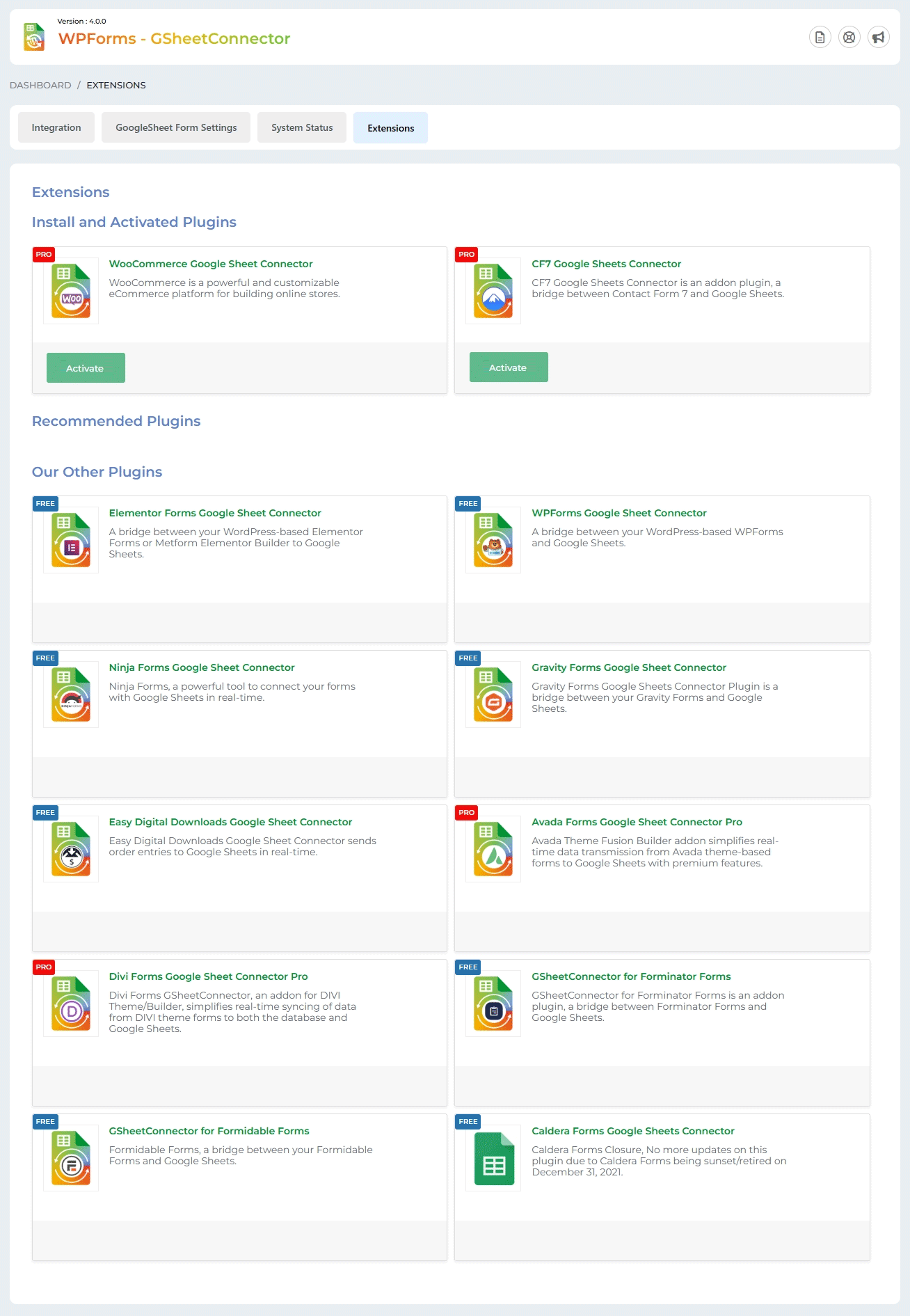
Extensions.


Installatie
- Upload
gsheetconnector-wpformsto the/wp-content/plugins/directory, ORSite Admin > Plugins > New > Search > GsheetConnector Wpforms > Install. - Activate the plugin through the ‘Plugins’ screen in WordPress.
- Use the
Admin Panel > WPForms > Google Sheet > Integrationscreen to connect toGoogle Sheetsby entering the Access Code. You can get the Access Code by clicking the “Get Code” button.
Enjoy!
FAQ
How do I get the Google Access Code?
To connect WPForms with Google Sheets, you need to authorize your Google account.
Follow these steps:
- Go to WPForms Google Sheet Integration in your WordPress admin.
- Click the “Google Signin” button.
- You will be redirected to Google to log in and authorize access to Google Drive and Google Sheets.
Please allow both permissions. - After authorization, Google will generate an Access Code and redirect you back to the plugin.
- Click Save & Authenticate.
Your connected Google email will be displayed, confirming that the connection is successful.
How can I send custom Smart Tag values (query_vars, user_meta, etc.) to Google Sheets?
You can add custom Smart Tags to WPForms and use them as column headers in Google Sheets.
Add this code to your site:
add_filter( “wpforms_smart_tags”, “edit_smart_tags” );
function edit_smart_tags( $tags ) {
$tags[‘query_var key=”wpformstest”‘] = ‘Query String Variable’;
return $tags;
}Then add the same Smart Tag key
query_var key=”wpformstest”
as a column header in your Google Sheet to receive the value.Why are entry_id and entry_date not appearing in my Google Sheet?
In the free version of the plugin, only the submission date is supported using the “date” column. Other Smart Tags, require the Pro version.
To use all Smart Tags and advanced syncing options, please upgrade to the
WPForms Google Sheet Connector Pro.Can I connect multiple WPForms to different Google Sheets?
Yes. You can connect each WPForm to its own Google Sheet or to different tabs within the same spreadsheet using feed-based connections.
Does the plugin sync data in real-time?
Yes. As soon as a form is submitted, the data is automatically sent to Google Sheets.
Is my data stored on external servers?
No. All data is transferred directly between your WordPress site and your Google account.
GSheetConnector does not store your form entries on any third-party servers.Why is my WPForms data not being sent to Google Sheets?
This usually happens if Google authentication has expired or permissions were not granted correctly.
Please check:
• Your Google account is still connected in WPForms Google Sheet Integration
• Google Drive and Google Sheets permissions are enabled
• You have clicked Save & Authenticate after signing inIf needed, simply re-authenticate your Google account from the Integration tab.
Will the submission date and time be saved in Google Sheets?
Yes. The plugin can send the submission date and time to Google Sheets.
In the free version, you can use the “date” column.
The Pro version supports full date, time, and Smart Tag based values.Can I map form fields to specific Google Sheet columns?
Yes. Field-to-column mapping is available in the Pro version, allowing you to control the column order, names, and structure of your Google Sheet.
Is my form data stored securely?
Yes. All form data is transferred directly between your WordPress site and your Google account.
GSheetConnector does not store your form submissions on any external servers.Can I sync existing WPForms entries to Google Sheets?
Yes. The Pro version allows you to sync previously submitted WPForms entries to Google Sheets.
Yes. The Pro version allows you to use any WPForms Smart Tag as a column header, including user data, query strings, and custom values.
What should I do if Google shows a “This app isn’t verified” warning?
This may appear when using a custom Google API project.
Click Advanced and then Go to project to continue. It is safe when you are connecting your own Google account.What does the Service Account option do?
Service Account authentication allows you to connect Google Sheets without repeated login prompts. It is ideal for websites that need uninterrupted syncing and higher reliability.
Why am I getting errors or missing entries?
Enable Debug Log and System Status in the plugin settings to see detailed error messages. These tools help identify permission, API, or configuration issues quickly.
Beoordelingen


Bijdragers & ontwikkelaars
“GSheetConnector For WPForms – WPForms Google Sheets Integration (Real-Time Sync)” is open source software. De volgende personen hebben bijgedragen aan deze plugin.
Bijdragers


“GSheetConnector For WPForms – WPForms Google Sheets Integration (Real-Time Sync)” is vertaald in 1 locale. Dank voor de vertalers voor hun bijdragen.
Interesse in ontwikkeling?
Bekijk de code, haal de SVN repository op, of abonneer je op het ontwikkellog via RSS.
Changelog
4.0.3
(17-01-2026)
* Fixed: freemius issues.
4.0.2
(03-12-2025)
* Added: UI changes.
* Added: capabilities check for the access of the plugin pages.
4.0.1
(20-11-2025)
* Added: UI changes.
* Fixed: Vulnerabilities issues.
4.0.0
(29-07-2025)
* Secured the plugin code by eliminating remote file calls, adding file access checks, escaping output, and verifying nonces.
* Replaced static asset includes with wp_enqueue_* functions for proper script and style loading.
* Fixed text domain for consistent internationalization support.
3.4.27
(16-07-2025)
* Tested up to latest version of WordPress 6.8.1.
* Confirmed compatibility with the latest versions of WPForms and WPForms Lite.
3.4.26
(21-04-2025)
* Added: Moved saving of credentials to database for Auto API Integration.
3.4.25
(31-01-2025)
* Added: condition added for the date sync.
* Fixed: Minor UI changes.
3.4.24
(20-01-2025)
* Fixed: Auto deactivation of the plugin.
3.4.23
(04-01-2025)
* Added PRO Showcase: Added Date Filter for Sync: Introduced a date filter option to simplify syncing for users with large entries.
* Added: The “Copy Log” button has been added.
* Fixed: Undefined error when clicking the “Copy to Clipboard” button in the System Info tab.
* Fixed: The issue with the Debug Log view and the close button has been fixed.
* Fixed: Dashboard widget formatting has been improved.
3.4.22
(08-08-2024)
* Added: Display a notification when authentication expires.
3.4.21
(30-07-2024)
* Fixed: Google hasn’t verified this app error.
3.4.20
(25-06-2024)
Added: UI changes.
3.4.19
(07-06-2024)
Added: UI changes.
3.4.18
(09-03-2024)
Added: Add links for support,docs,upgrade to pro.
3.4.17
(28-12-2023)
Fixed: Connected email account display issue.
3.4.16
(30-10-2023)
Fixed: error displayed for dashboard widget.
3.4.15
(11-10-2023)
Fixed: Solved PHP Warning and compatible with PHP 8.X.
3.4.14
(11-10-2023)
Added : The Google API Client Library has been upgraded to version 2.12.6, incorporating Guzzle HTTP version 7.4.3.
Added : Update enhances reliability and debugging capabilities, ensuring smoother integration with Google services.
Added : Added Language files for French, Spanish, Dutch, and Italian.
3.4.13
(22-09-2023)
Fixed: error displayed for dashboard widget.
Added : For user without Google Drive and Google Sheets permissions Authentication shown alert with message.
UI Changes : Redesigned System Status and Error Log for improved functionality and user experience.
3.4.12
(10-08-2023)
Fixed : Duplicate entry issue resolved.
Added : Transfering old setting to a new feed while updating.
Fixed : css issue.
3.4.11
(07-08-2023)
Added : Moved old settings to new settings.
Fixed : Undefined function resolved.
UI Changes : Showcasing PRO Features in WPForms > GSheetConnector Feeds.
3.4.10
(03-08-2023)
Added : Google sheet Setting added in Edit forms > GSheetConnector
Added : System Status tab added.
3.4.9
(24-07-2023)
Fixed : revert some changes.
3.4.8
(24-07-2023)
Added : UI changes.
3.4.7
(10-06-2023)
Fixed : smart_tags undefined issue resolved
3.4.6
(28-04-2023)
Added : Remove access permission from google account while deactivating authentication.
Fixed : Undefined class issue solved.
Fixed : Vulnerabilities issues.
3.4.5
(30-07-2022)
* New Google Integration method implemented using web app.
3.4.4
- Fixed: Undefined function issue.
3.4.3
- Fixed: Wrong Class issue resolved.
- Fixed: Undefined function issue.
3.4.2
- Fixed: Displaying error and not allowing data to get saved to Google Sheet.
3.4.1
- Fixed: Undefined index issue.
3.4
- Fixed: redeclared class error.
- Fixed: smart_tags data not getting saved and throwing errors.
- Displayed connected Google account at the Integration Page.
- Added Upgrade to PRO link and list out feature of PRO version.
- Added Logo on dashboard page.
3.3
- Fixed smart tag not getting saved to Google Sheet.
- Update API Libraries.
3.2
- Fixed fontend errors on form submission.
3.1
- Fixed Smart tag errors and issues with new update of WPForms Lite Version 1.6.3.1
3.0
- Get smart tags value to the sheet. Add tags to header without curly braces.
- Fixed displaying of single quote sign in front of numeric and date values.
- Fixed – conflicts error.
- Fixed – Get Date and Time as per local time instead of universal time.
2.0
- Upgrade Google APIs Client Library to V4.
1.3
- Removed admin notifications for limit.
- Fixed not allowing form data to be saved at Google Sheet.
- Fixed WPForms listing showing only five forms at Google Sheet settings tab.
1.2.1
- Fixed error at dashboard widget.
1.2
- Allow user to deactivate authentication
- Added FAQ and System Status Tab
- Fixed displaying of debug statements after form submission.
- Allow user to add default “date” and “time” column to Google Sheet.
1.1
- UI changes
- Moved tab from WPForms settings to “Google Sheet” tab.
1.0
- First public release
- Integrated WPForms with Google sheets.

